User Guide
The user guide explains how to use the Phoenix web application to interact with Web Processing Services.
Login
Press the Sign in button in the upper right corner.

The login page offers you several options to login to Phoenix.
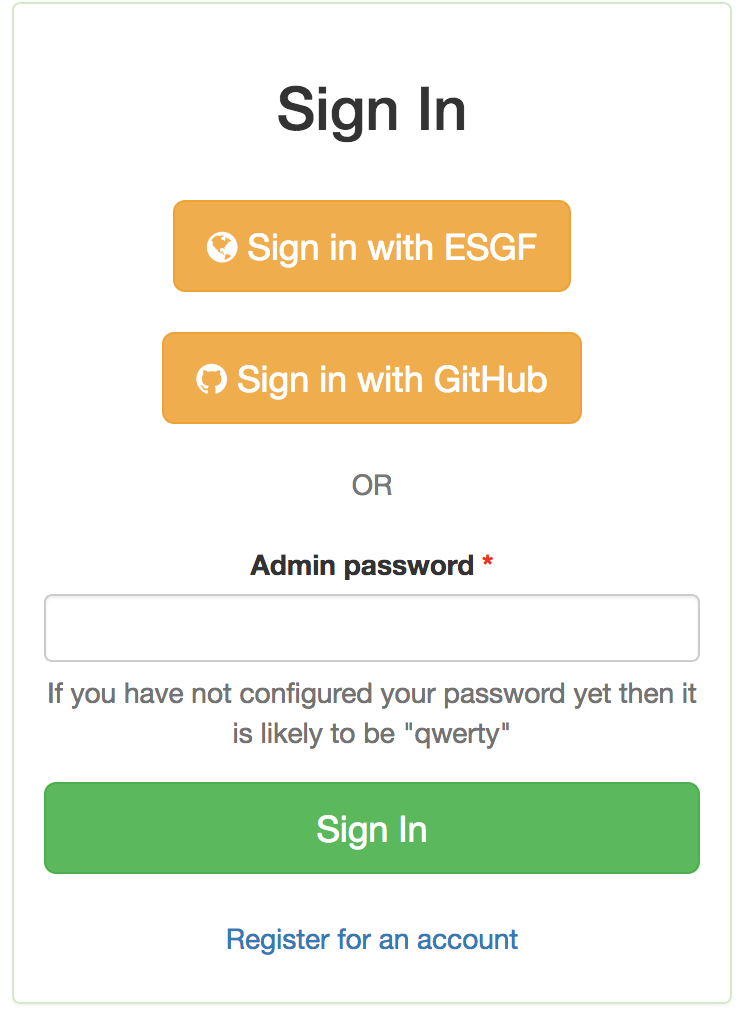
You can login using your GitHub account.
If you are Phoenix admin you can also enter the admin password here.
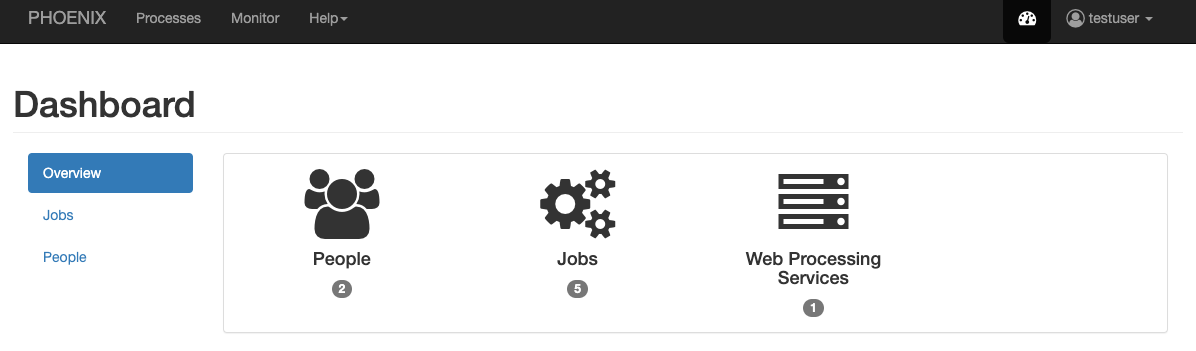
Processes
When you have registered WPS services you can run a process. Go to the
Processes tab.
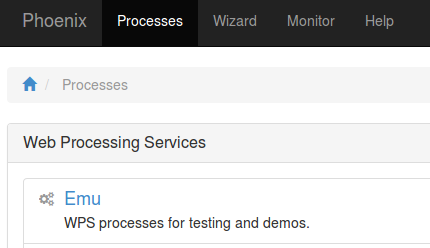
Choose one of your registered WPS services. You will get a list of available processes (WPS GetCapabilities request).
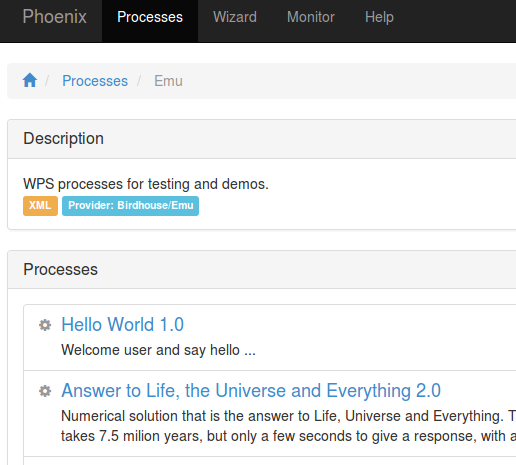
Choose one of these processes by using the Execute button.
In case of Emu you may try the Hello World process. You will then be
prompted to enter your username:
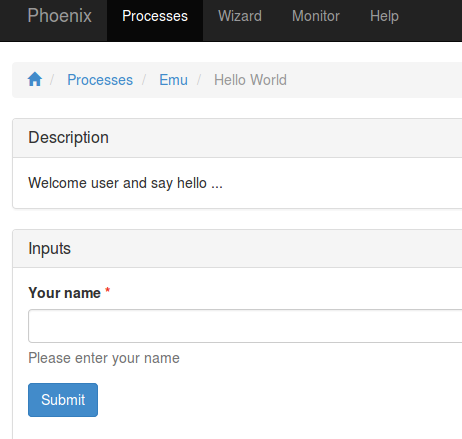
Press the Submit button. When the process is submitted you will be shown your job list in Monitor.
Monitor
In Monitor all your running or finished jobs are listed.
The list shows the status and progress of your jobs.
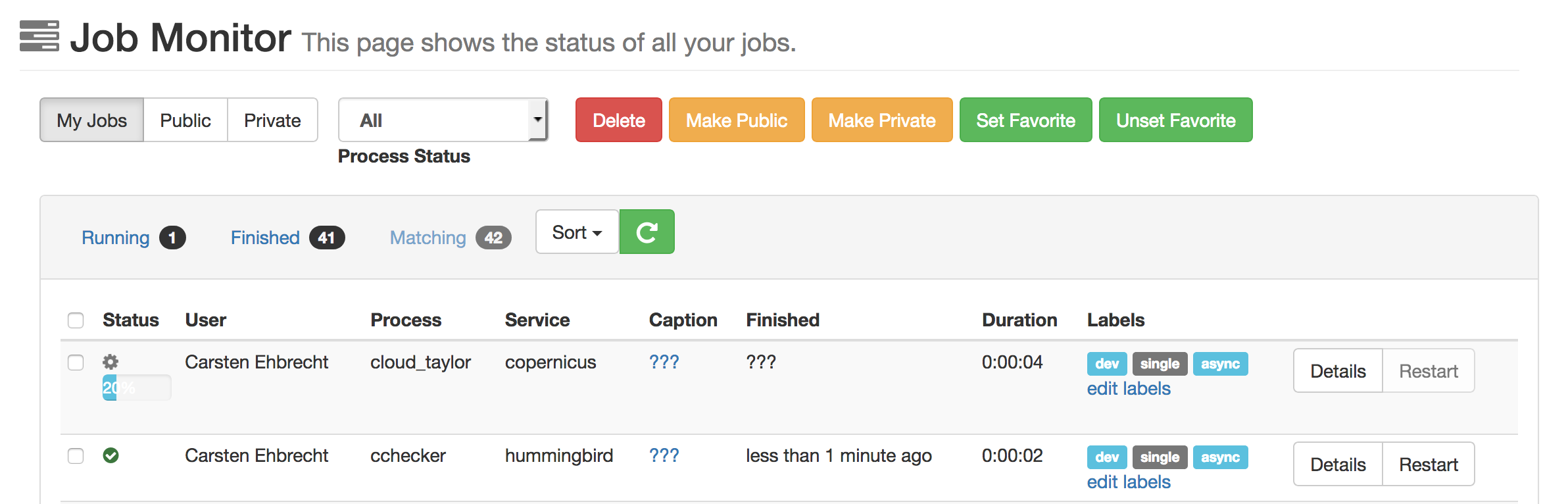
When a job has finished with success you can see the results by clicking the Details button.
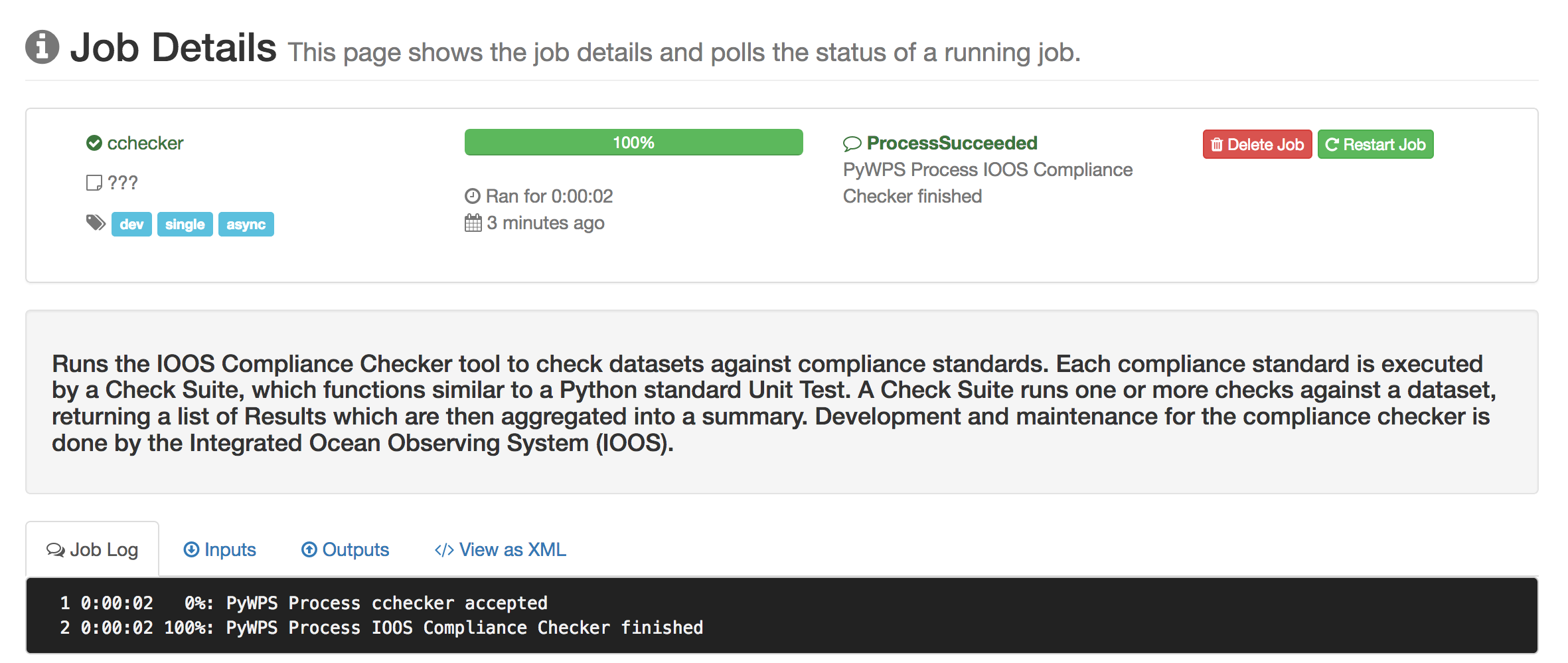
If the result has a document (XML, text, NetCDF, …) you can view or download this document with the Download button.
My Account
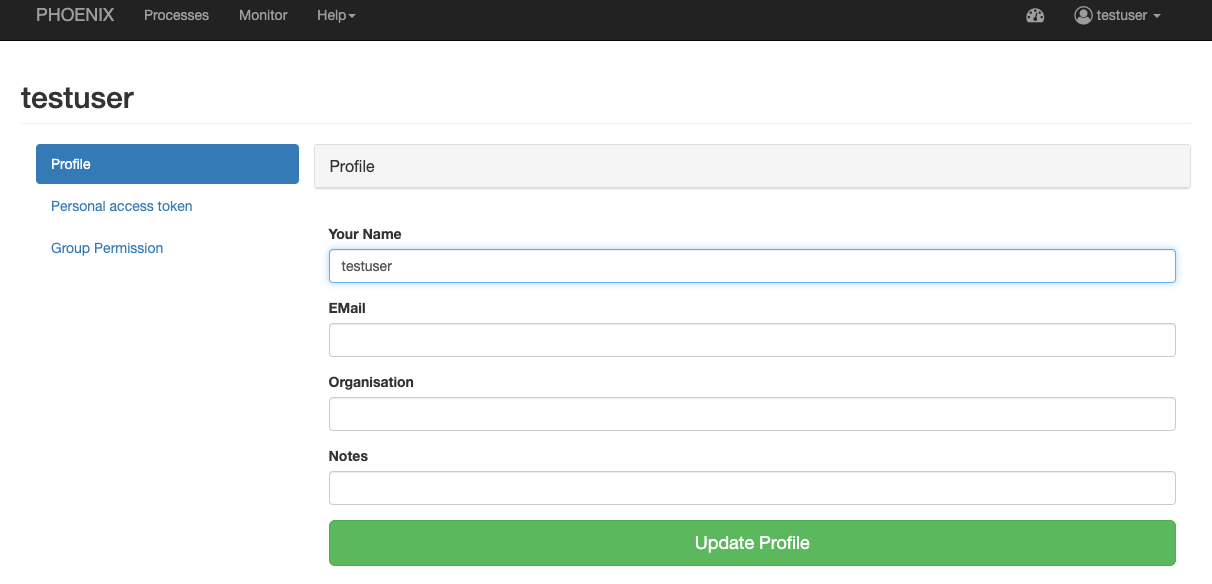
In My Account you can change your user settings (user name, organisation, openid, …).
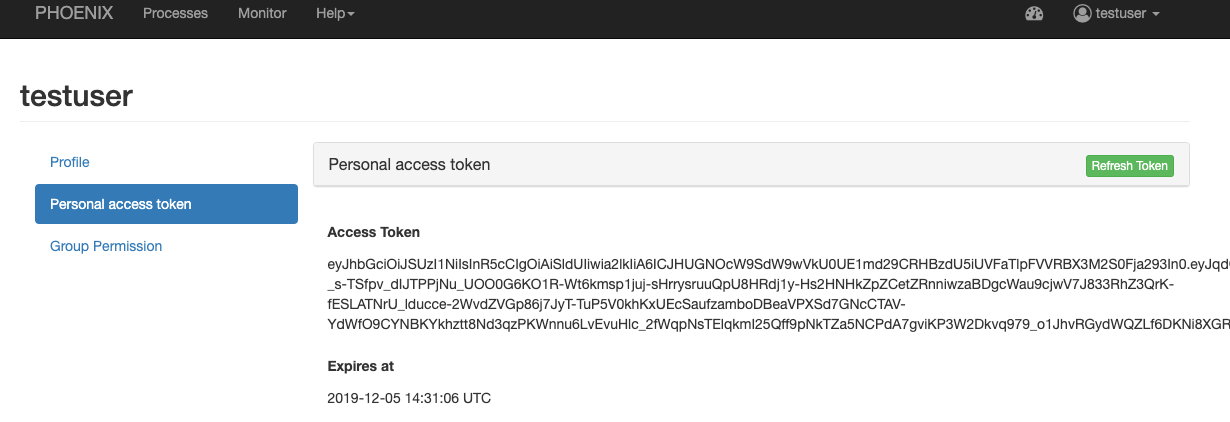
You can also see your current access token which you can use to access a protected WPS service directly.
Settings (admins only)
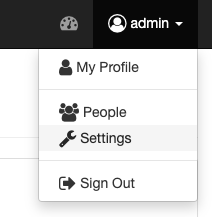
When you are logged-in as admin user you have the Settings page. Here you can make administrative changes and monitor services.
Register a WPS service
Open the Settings/Services page. Here you can see which services are registered in the catalog.
All theses services are known and usable by Phoenix.
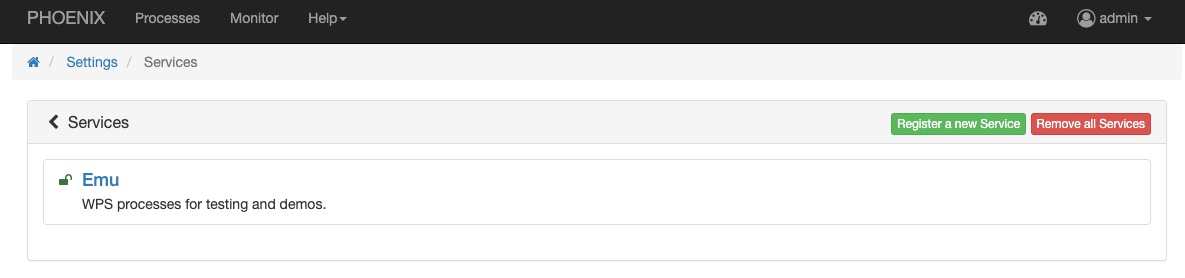
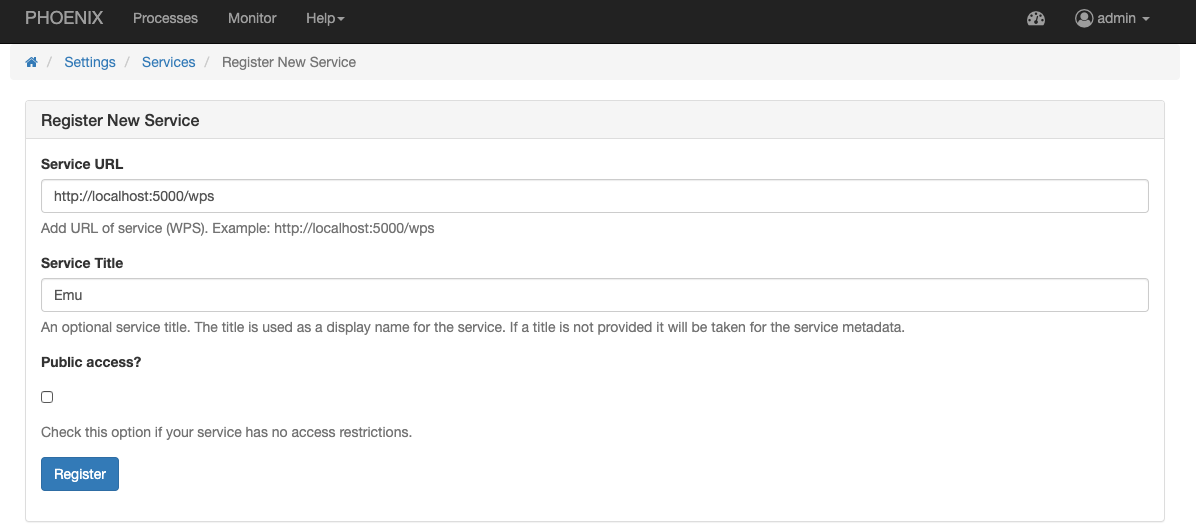
To add a new WPS service, press the Register a new Service button and enter the WPS URL in the field Service URL.
For example, to register Emu WPS: